


A Windows PC can gradually become slower and less efficient without any obvious warning. Temporary files accumulate, browser data grows, unused applications remain installed, and programs may continue running in the background. Over time, this digital clutter can consume storage and make everyday tasks feel less responsive.
Keeping a computer in good condition does not necessarily require complicated technical knowledge. A combination of regular maintenance, thoughtful software management, and the right optimization tools can make a significant difference.
For Windows users looking for a practical way to maintain their systems, two areas deserve particular attention: PC cleaning and optimization and complete software removal.
Why Windows PCs Become Cluttered Over Time
Everyday computer use creates a surprising amount of unnecessary data.
Web browsers store caches and browsing traces. Applications create temporary files and logs. Windows and other software can leave behind files that are no longer needed. At the same time, users often install programs for a specific task and forget about them after the task is complete.
None of these issues necessarily creates an immediate problem. However, when they accumulate, they can take up valuable storage and make system maintenance more difficult.
Startup programs are another consideration. Some applications automatically launch when Windows starts, even when they are not needed immediately. Managing unnecessary startup items can help create a cleaner and more efficient working environment.
That is why regular PC maintenance should be treated as an ongoing habit rather than something to do only when a computer becomes noticeably slow.
What to Look for in a PC Cleaner
A good PC cleaner should do more than simply delete a few temporary files. Ideally, it should help users identify different types of unnecessary data and provide a convenient way to clean and optimize their systems.
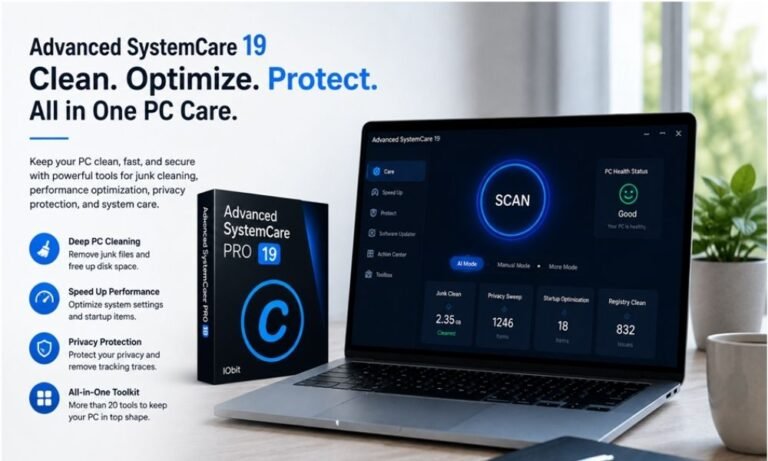
IObit’s Advanced SystemCare 19 is designed as an all-in-one Windows optimization utility that combines cleaning, performance optimization, privacy-related features, and system maintenance. According to IObit’s official information, its cleaning capabilities include scanning system logs, temporary files, and other unnecessary data, while its optimization tools can also help manage startup items.
One useful feature for users who prefer simple maintenance is its AI Mode. After launching Advanced SystemCare, users can start an AI scan from the Care tab and then use the Fix option to clean detected junk files and address system issues.
Advanced SystemCare 19 also introduced improvements to its junk-file cleaning capabilities, including support for cleaning junk associated with Microsoft Store applications. Its updated AutoCare functionality is designed to make routine system maintenance more convenient.
For users who want a straightforward starting point for regular Windows maintenance, Advanced SystemCare is worth considering.
Uninstalling Software Is Part of PC Maintenance
Cleaning unnecessary files is only one side of keeping a computer organized.
Installed applications can also contribute to clutter. Many users uninstall programs they no longer need, but removing the main application does not always mean every associated file or configuration has disappeared.
This is where choosing the right uninstall tool can be useful.
IObit Uninstaller is designed specifically for removing unwanted programs, Windows applications, browser extensions, and related leftovers. Its official product page states that it can detect and remove various types of unwanted software and associated residual data, including temporary files, registry entries, executables, and configurations.
The current IObit Uninstaller 15 release also includes an expanded database for stubborn software and improvements to its uninstall engine. IObit says the product can handle more than 4,000 stubborn programs and provides tools for managing browser extensions and bundled software.
Another useful capability is batch uninstalling. Instead of manually removing applications one at a time, users can select multiple programs and manage them together. The software also provides options for scanning and cleaning residual files after an uninstall.
For Windows users who regularly install and remove applications, IObit Uninstaller can make software management considerably more organized.
PC Cleaning and Software Removal Work Together
It is easy to think of PC cleaning and uninstalling software as two unrelated tasks, but they complement each other.
Consider a computer that has been used for several years. It may contain:
- Temporary files and cached data
- Old application leftovers
- Unused software
- Browser extensions that are no longer necessary
- Startup applications
- Outdated or unnecessary files
- Data associated with previously removed programs
Deleting temporary data without reviewing installed software may leave unnecessary applications untouched. Likewise, uninstalling unused programs without performing broader system maintenance may leave other types of clutter behind.
A more complete maintenance routine addresses both.
A Simple Windows Maintenance Routine
You do not need to spend hours maintaining your PC. A consistent routine can be relatively simple.
1. Review installed applications
Look through your installed programs every few months. If you have not used an application for a long time and do not expect to need it, consider removing it.
2. Clean unnecessary files
Use a trusted PC cleaning utility to identify temporary files, system junk, and other unnecessary data.
3. Review startup programs
Check which applications launch automatically with Windows. Disable unnecessary startup items where appropriate.
4. Manage browser extensions
Browser extensions can be useful, but unused or unnecessary extensions should be reviewed regularly.
5. Keep software updated
Updates can provide new features, bug fixes, and security improvements. Keeping important applications current is an important part of routine PC maintenance.
6. Repeat the process
PC maintenance works best when it becomes a habit. A periodic check can prevent small amounts of clutter from turning into a much larger cleanup task.
Choose Tools Based on Your Needs
There is no single maintenance action that solves every PC performance problem. Storage limitations, hardware age, software conflicts, malware, and other technical issues can all affect performance.
However, keeping unnecessary files and applications under control is a practical place to start.
Advanced SystemCare focuses on broader system cleaning and optimization, while IObit Uninstaller concentrates on removing unwanted applications and their associated leftovers. Used appropriately, they address two important aspects of maintaining a cleaner Windows environment.
The key is not simply installing another utility. It is developing a sensible maintenance routine and using tools that match the task.
Final Thoughts
A well-maintained PC is easier to manage, easier to work on, and less likely to become overwhelmed by unnecessary digital clutter.
Regular cleaning can help manage accumulated junk, while proper software removal can prevent unwanted applications and residual data from piling up.
For users who want an accessible solution for these tasks, Advanced SystemCare 19 provides PC cleaning and optimization features, while IObit Uninstaller 15 focuses on comprehensive software removal and leftover cleanup.
Good PC maintenance does not have to be complicated. Start with the basics, review your system regularly, remove what you no longer need, and keep the software you rely on properly maintained.
A cleaner computer is not just about having more free space. It is about creating a more organized, efficient, and manageable digital environment.
